The calendar I need is missing
Check that you connected the correct Google account and that the calendar is available to that account in Google Calendar. Then check the widget's calendar selection and refresh the timeline.
 Agenda Widget
Windows 10 & 11 · Setup guide
Keep your next meeting and today's tasks in view while you work. Agenda Widget brings selected Google calendars to a desktop timeline on Windows 10 and Windows 11.
Try Agenda Widget in Microsoft Store7-day free trial · One-time purchase
See the current price in Microsoft Store.
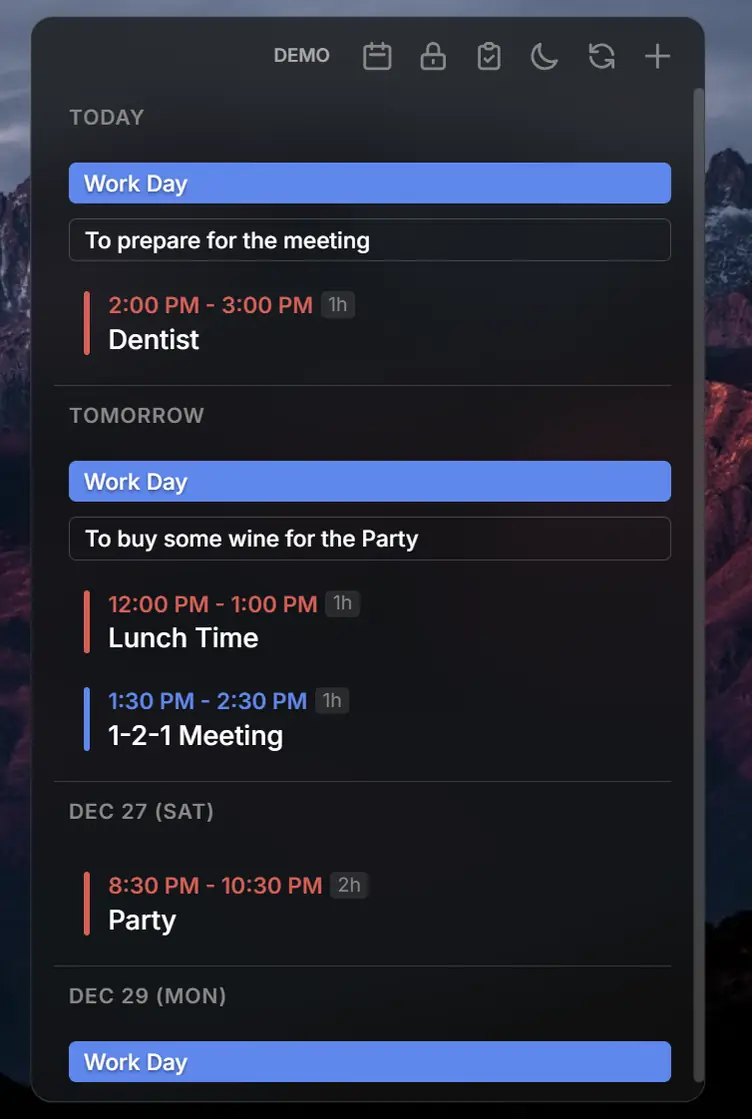
If you use Google Calendar to plan your day, a desktop timeline gives you a quick view of what comes next without repeatedly switching to the calendar tab. Agenda Widget is a separate Windows app: connect your Google account, choose the calendars you need, and keep appointments beside your work. You can also display Google Tasks and connect Todoist when you want tasks and meetings in the same view.
Explore the interactive Google demo before installing. It uses sample data and does not connect to your accounts.
Open the Store listing on your Windows PC, choose the trial option, and install Agenda Widget. Launch the app when installation finishes. The listing shows the current local price and availability.
On the widget's first sign-in screen, choose Connect Google. Complete Google's authorization in your browser using the account that owns the calendars you want to display. Review the requested permissions before approving access.
Return to the widget after authorization. Select the calendars you want in the timeline. Start with your main calendar, then add other calendars you have access to. A calendar shared with read-only access remains read-only.
Select Google Tasks lists to see tasks alongside appointments. To add Todoist later, right-click the Refresh icon, open Refresh Settings, and choose Connect next to Todoist under Accounts. You can keep both providers connected.
Review today's events in the timeline. Try creating or editing an event in a calendar you can write to, then check it in Google Calendar. Supported changes synchronize back to the connected account.
Choose only the calendars that help you plan the day. For example, display your work meetings and personal appointments together, then add your daily task list. Use the timeline to view, create, edit, or reschedule supported events. Calendar permissions still apply, so you can view a subscribed calendar without gaining permission to change its events.
Need the full connection walkthrough? See how to connect both accounts.
Sign in on the provider's authorization page, rather than entering your password into the widget. Read the privacy policy for details about account data and permissions.
Check that you connected the correct Google account and that the calendar is available to that account in Google Calendar. Then check the widget's calendar selection and refresh the timeline.
You do not need to start over. Right-click Refresh, open Refresh Settings, and choose Connect next to Google under Accounts. Complete authorization, then select your Google calendars.
Check internet access and whether you can edit that event in Google Calendar itself. Confirm that you are looking at the same calendar and account. If the problem persists, contact Agenda Widget support with the steps and app version; do not send passwords or authorization tokens.
Still need help? Contact Agenda Widget support.
Yes. Install Agenda Widget through Microsoft Store, connect Google, and select the calendars to show in its desktop timeline. It also supports Windows 10.
No. Agenda Widget runs as a separate desktop widget. This guide sets up that app, rather than a card inside the Windows Widgets panel.
Yes, supported event changes synchronize back to Google Calendar. You must have permission to edit the calendar or event.
Agenda Widget offers a 7-day free trial through Microsoft Store, followed by a one-time purchase. The Store listing shows current pricing and availability.
Install, try, and buy through Microsoft Store.
Next guide: Show Todoist tasks beside your calendar on Windows