A list or task is missing
Check the connected Google account, selected lists and current view. Refresh and confirm the task exists in Google Tasks.
 Agenda Widget
Windows 10 & 11 · Setup guide
Connect Google in Agenda Widget and select your calendars and task lists to see meetings and tasks in one Windows desktop timeline.
Try Agenda Widget in Microsoft Store7-day free trial · One-time purchase
See the current price in Microsoft Store.
Updated
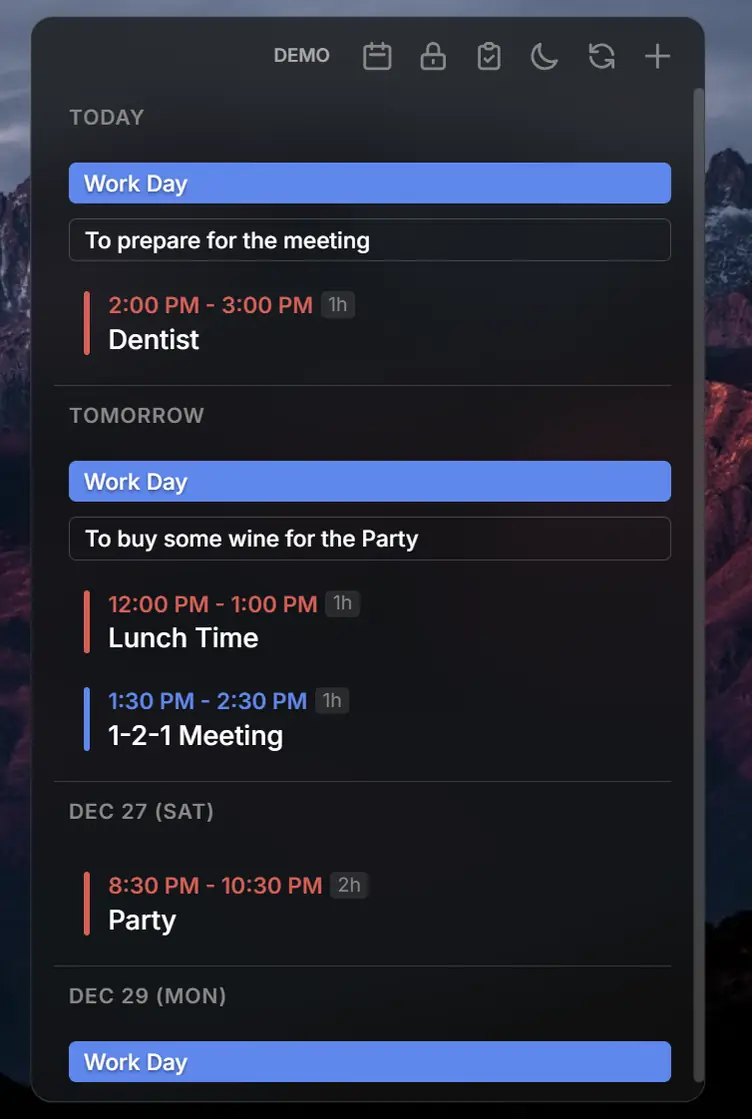
Agenda Widget combines selected Google Calendar events and Google Tasks in one desktop view. You can also connect Todoist separately. Showing items together does not copy tasks into Google Calendar as events.
Explore the interactive Google demo before installing. It uses sample data and does not connect to your accounts.
Install the app from Microsoft Store on Windows 10 or 11 and launch it.
Choose Connect Google, sign in on Google's authorization page and review the requested permissions.
Select the calendars and Google Tasks lists you want to display. Start with the ones relevant to your day.
Check your events and tasks together. Supported edits sync with the relevant provider and remain subject to calendar permissions.
Use the timeline to see scheduled commitments alongside tasks. Connect Todoist separately if you want its selected projects in the same view.
Need the full connection walkthrough? See how to connect both accounts.
Sign in on the provider's authorization page, rather than entering your password into the widget. Read the privacy policy for details about account data and permissions.
Check the connected Google account, selected lists and current view. Refresh and confirm the task exists in Google Tasks.
Still need help? Contact Agenda Widget support.
No. Agenda Widget displays items together; that does not create calendar events from your tasks.
Yes. Connect Todoist separately and select the projects you want to display.
Editing depends on the permissions granted for that calendar.
Install, try, and buy through Microsoft Store.
Also use Notion? Sync Google Tasks with Notion.
Next guide: Keep your calendar visible while working