The calendar I need is missing
Check that you connected the correct Google account and that the calendar is available to that account in Google Calendar. Then check the widget's calendar selection and refresh the timeline.
 Agenda Widget
Windows 10 & 11 · Setup guide
Agenda Widget puts your selected calendar events and tasks in a desktop timeline. Use its visibility controls to keep your schedule accessible while you work.
Try Agenda Widget in Microsoft Store7-day free trial · One-time purchase
See the current price in Microsoft Store.
Updated
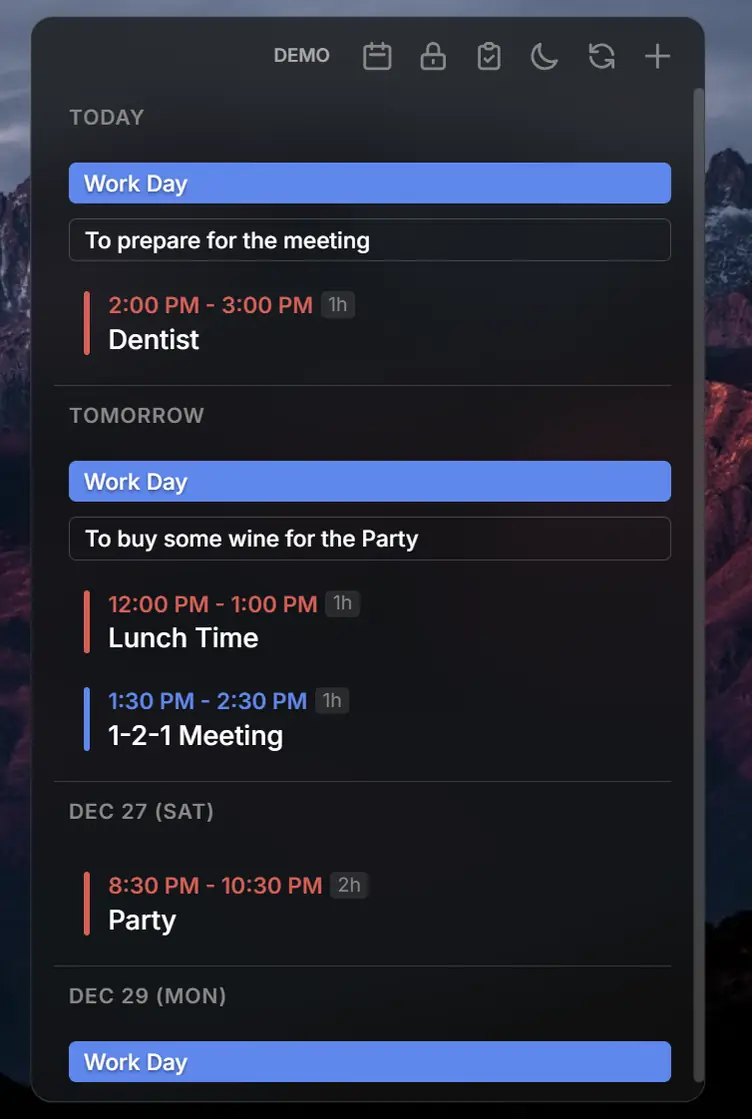
Agenda Widget is a standalone Windows desktop widget for Google Calendar, Google Tasks and Todoist. Connect the accounts you need, choose what to display, and adjust the widget's visibility for your workflow.
Explore the interactive Google demo before installing. It uses sample data and does not connect to your accounts.
Install the app from Microsoft Store on Windows 10 or 11 and open it.
Choose Connect Google, complete authorization in your browser and select the calendars you want to see.
Use the widget's Keep Visible controls to choose a duration, from 30 seconds to Forever. Adjust its size and placement to suit your workspace.
Return to your work and use the visible timeline to check your next event or task. Change the visibility setting when you need more space.
Select only the calendars you need during the day. If you use multiple applications, adjust the widget's visibility and position so that it does not cover important controls.
Need the full connection walkthrough? See how to connect both accounts.
Sign in on the provider's authorization page, rather than entering your password into the widget. Read the privacy policy for details about account data and permissions.
Check that you connected the correct Google account and that the calendar is available to that account in Google Calendar. Then check the widget's calendar selection and refresh the timeline.
You do not need to start over. Right-click Refresh, open Refresh Settings, and choose Connect next to Google under Accounts. Complete authorization, then select your Google calendars.
Check internet access and whether you can edit that event in Google Calendar itself. Confirm that you are looking at the same calendar and account. If the problem persists, contact Agenda Widget support with the steps and app version; do not send passwords or authorization tokens.
Still need help? Contact Agenda Widget support.
The Keep Visible duration includes a Forever option.
No. Agenda Widget runs as a separate desktop app.
Yes. You can select Google Tasks lists or connect Todoist and choose projects.
Install, try, and buy through Microsoft Store.
Also use Notion? Sync Google Tasks with Notion.
Next guide: Show Google Tasks on your desktop